
Index

PROJECT EDITING
All ELN records are fully editable. Adding a file, an image or a sentence is always possible.
Original, unedited versions of the pages can be automatically backed up and digitally signed using Audit menu. Audited backups are protected from any record alterations with cryptographically strong digital signatures.
Controls summary
|
Control |
Role |
Remark |
| EDIT MODE | Enter or exit the direct editing mode | Use Save button to exit with saving changes |
| H | Start HTML source editor | A more powerful, but a more complex analog of the EDIT MODE |
| Add | Edit Hyperlink | Link edits | Operates only on a currently selected text |
| Lense | Zoom pages in/out | Try not to save zoomed pages, edit fonts here to change defaults |
| Font | Scrolls through several fonts | Operates only on a currently selected text |
| ss | Superscript and subscript | Operates only on a currently selected text |
| Aa | Scrolls through several font sizes | Operates only on a currently selected text |
| B | Bold | Operates only on a currently selected text |
| I | Italic | Operates only on a currently selected text |
| U | Underline | Operates only on a currently selected text |
| fg | Foreground color | Operates only on a currently selected text |
| bg | Background color | Operates only on a currently selected text |
| C | Converts objects in clipboard to plain text | |
| A | Art items to decorate records | |
| S | Spell check | Operates on a clicked page field |
| < | Left align | Operates only on a currently selected text |
| <||> | Middle align | Operates only on a currently selected text |
| |||| | Center | Operates only on a currently selected text |
| - | Insert line separator | Operates only on a currently selected text |
| - | Insert line separator | Operates only on a currently selected text |
| draw | Opens drawing tool | |
| table | Opens table insertion tool | Operates on a clicked page field |
| t-box | Inserts freely resizable text box | Operates on a clicked page field |
| save | Saves current page | One Undo operation is allowed |
| Starts print preview dialog |
Editor's main functions:
Editing text in existing project and note pages (including edits of links and text boxes)
(for even greater editing freedom, see direct HTML source editing)
Appending files with data (like this - click now: text_file.txt)
Inserting images (JPEG, PNG, BMP etc)
Creating and inserting hand drawings, built-in sketching module is accessed via
 button
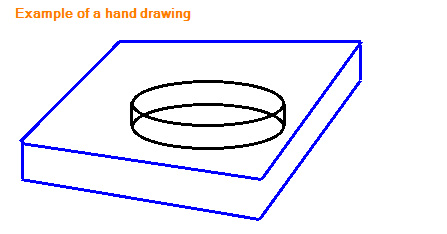
To add text to the drawings, click [T] button.
Mouse move: move the label.
Right-click: edit text (navigate to the text box appearing on the left for typing).
Double-click: paste text.
To add shapes (circles, ovals and rectangles) use the [O] button.
Use Double-clicking, Right mouse button and Left mouse button to move and resize the shapes.
Digitally signing data and checking data authenticity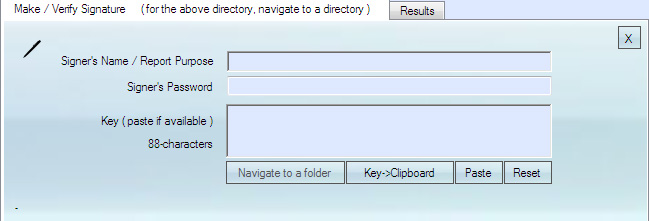
Font formatting via Font (font name), subscript/superscript, Aa (font size), B, I, U, fg and bg buttons:
t=17 oC font font font font font font font font font
Page Art insertion: via A button:
 |
 |
 |
Included shapes or custom shapes can be used.
Paragraph Alignments via <, <||>, |||| buttons:
< paragraph
<||> paragraph
Text box insertion via t-box button:
DNA sequence
|
Kd |
kcat |
T (oC) |
remarks | |
| WT |
1e-6 |
15 |
25 |
|
| E21A |
2e-6 |
0.1 |
25 |
|
| H56A |
1e-6 |
0.5 |
27 |
|
| E21A/H56A |
1.5e-6 |
0.03 |
25 |
non-additive effect |
(1) Navigate to an ELN page (location should end with .html).
(2) Click anywhere on the page to point where the file/image will be located.
(3) DragDrop file/image to the blue file/image pad.
File/Image will be moved inside ELN and embedded into the HTML page.
Images can be moved/resized with a computer mouse in the EDIT MODE:

Note, this operation works with HTML pages only. Use it with ELN primary data pages.
It is not recommended to add images to overview pages, such as month/year pages.
To use the editor, in the ELN tab navigate to an ELN page "ID_... .html" or to a notes page *.html. Check "EDIT MODE" and type changes directly in the html page. The editing is WYSIWYG (what you see is what you get).
When editing is complete, click "save" to save changes.
If "save" option is not available (because "undo" is active), checking "EDIT MODE" to activate save.
MOVING FILES AND IMAGES TO DIFFERENT POSITIONS ON A PAGE
(1) Check EDIT MODE
(2) Move any file link or image over the page with the mouse.
(3) Save edited page.
INSERTING HAND DRAWINGS
Press draw button to open drawing panel. Draw with a mouse pointer and click "paste" to append the sketch to the ELN page.
The drawing controls allow to draw curves and straight lines, place text labels and draw shapes. Certain options for labels and shapes are accessed via double-clicking or right-clicking them.
CHANGING FONT COLORS AND PAGE FORMATTING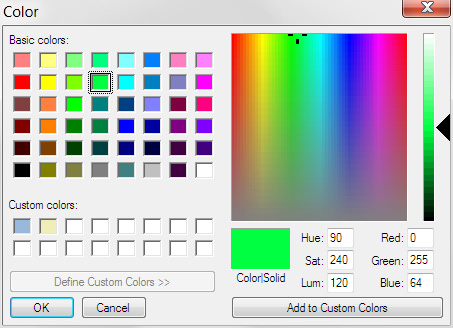

The function requires that some text or an empty space is selected in an ELN page before the t-box button is clicked. If nothing is selected on the ELN page, t-box produces no output.
link selection opens shortcut editor to add or modify URL or local links. 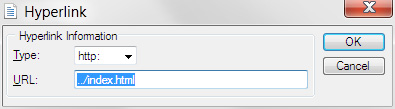
Links can be absolute or relative.
Links can be to local files or to internet web sites.

This will show print preview and allow to print a page.
You may chose whether to "Print background color and images" in the settings dialogue of the print preview.
LINK ANY TWO ELN PAGES
To conveniently hyperlink two ELN pages, read the help in the LINK panel (click the question mark symbol "?").
Briefly, store two html pages to be linked in registers 1 and 2. Navigate to page 1 or 2, select object or text to be linked, click "1:2", press Ctrl+V to paste relative path from memory to the hyperlink box. Click "save".
SEARCH
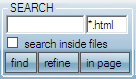
The built-in search function finds pages or files that contain keywords of interest. Keyword search can be done inside files or, much quicker, inside file names in all subdirectories of the ELN's current address box.
Search function will find and show any relevant images embedded directly in output page.
Search function uses regular expressions. If you do not know what regex are, google has plenty of information. In short, regex allow searching for text patterns very flexibly. Here is one example. Searching for ".doc" will find files named "summary.doc", "mydocument.pdf", "old_documentary.avi" etc. This is because "." means "any symbol" in regex. To find all files with ".doc" extension, one needs to search for "\.doc" instead, where "\" is an escape character that forces regex to treat "." as simply a dot.
BOOKMARKS
It is possible to store locations of up to 8 ELN pages, local directories or any web sites. To bookmark current location, click 1-8 with the right mouse button. To navigate to a stored location, left-click the 1-8 digits.