
Index

ELECTRONIC LABORATORY NOTEBOOK
ELN is the central module of this program. ELN serves to keep user records
and related data files in an automatically organized way, stamped with date-time and unique ID.
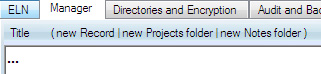
New records are added by providing at least a short title:
 |
and pressing the new page button:
 |
New page is issued, date-stamped, formatted and integrated into the notebook automatically.
Records can be fully edited later and the details and results filled in.
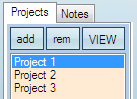
There are two types of records: Projects and Notes. Projects are equivalent to paper
folders with day-to-day records on a particular research project. Notes are organized thematically
rather than by date-time and serve well for organizing laboratory protocols, PDFs, thematic pages,
such as "PyMol commands and usage", "Linux tuning"
Before using ELN, it is necessary to decide if ELN will be encrypted or unencrypted.
(it is possible to transfer ELN between these types of uses at any time)
Instructions below apply to unencrypted ELN.
The use of encrypted ELN is outlined in the TrueCrypt section.
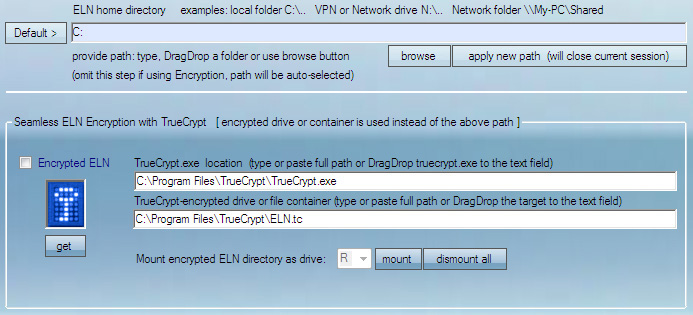
TO BEGIN: SET AN ELN WORKING DIRECTORY
Working directory is the home location of all future records in ELN.
Do not check the Encrypted ELN check box unless you plan to set up and use encryption.
CREATING NEW PROJECTS AND NOTES FOLDERS
In ELN Manager, type a project name in the "Title" box. Click "add" button to create a new Project (or new Notes folder).

ADDING NEW PAGES TO PROJECTS AND NOTES
To add a new page to a Project or Note,
(1) Select a Project name or a Note name in the list box below the [Add] [Rem] [View] buttons.
(3) In the "Description" box below, type a detailed description, in plain text,
or a short description (more description can be added later to the finished ELN page)
 Insert Templates, if necessary:
Note that some templates have format
===[( tag )]===
for automatic processing. This format should not be altered. One should write only in lines between these tags.Templates can be freely edited and custom templates can be made
by selecting >edit_templates
After steps 1-3 are completed, a new page can be created by clicking the PAGE button:

The number on the PAGE button shows ID used for this new page.
Remarks
The VIEW
 button can be used to open the most recent page in any selected Project or Note.
All digits are highlighted in green (1, 23.45) for better visibility.
Spell checking is built-in and is always enabled in the Description (or Content) window.

If a correct word is highlighted in red, it can be added to the dictionary.
Although this program is recommended for project browsing, Internet Explorer,
Firefox or other web browsers can be used to view all the records.
SAVING PROGRAM's STATE IN PROJECTS
To manually save a snapshot of the program's entries, the "BOX" button (in ELN Manager) can be used. The button saves the *.dca file to the most recent project page created. The ID of the most recent page is shown on the "BOX" button.
Each time the "BOX" button is clicked, it is disabled to disallow overwriting existing *.dca files. To re-enable this button, type a new title in the "Title (opt)" text box found in the Solutions module.